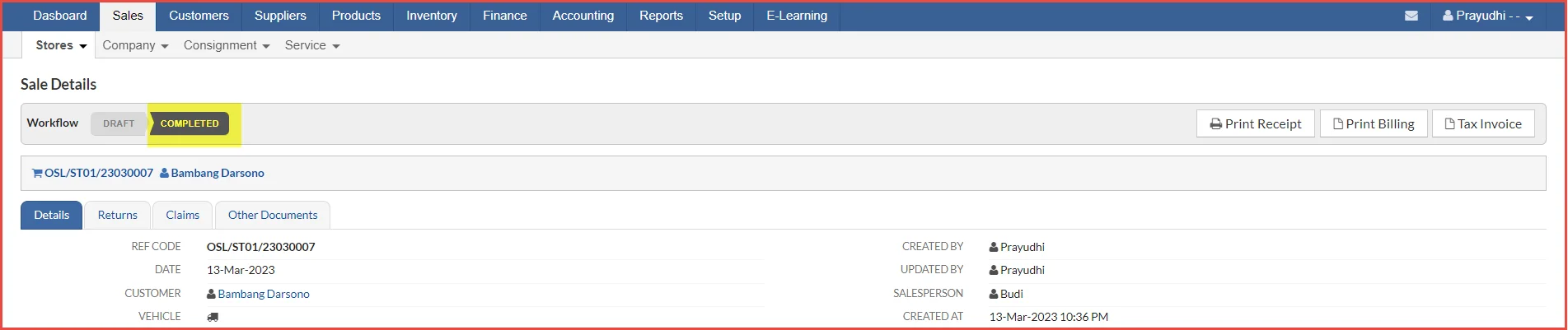
Sales Ecommerce: Delivery Warehouse
Overview
Transaksi ecommerce yang proses pengiriman barang nya dikirim langsung dari warehouse ke alamat customer.
Informasi Setting
Module Permission
- Company administrator enable managed user, bisa memberikan akses ke semua user
- Module Permission Store
- Edit user lalu pilih tab module permissions store dan checklist “Edit Store”
- Module Permission Sales Ecommerce
- Edit user lalu pilih tab module permissions sale ecommerce dan checklist “Edit sale ecommerce”
- Module Permission Store


Store Setting
- Company administrator
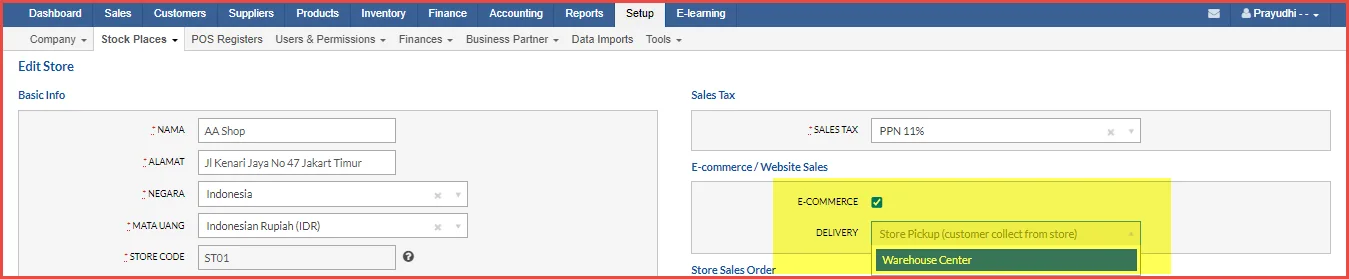
- Menu setup > stock places > store > edit > checklist ecommerce > lalu pilih delivery "warehouse" > save
Company Data Setting
- Hanya bisa dilakukan oleh platform administrator
- Default ecommerce bisa dipilih antara delivery atau pickup
- Menu setup > company > company data > edit > platform setting > ecommerce fullfilment type delivery/pickup > save

Tools Setting
- Company administrator
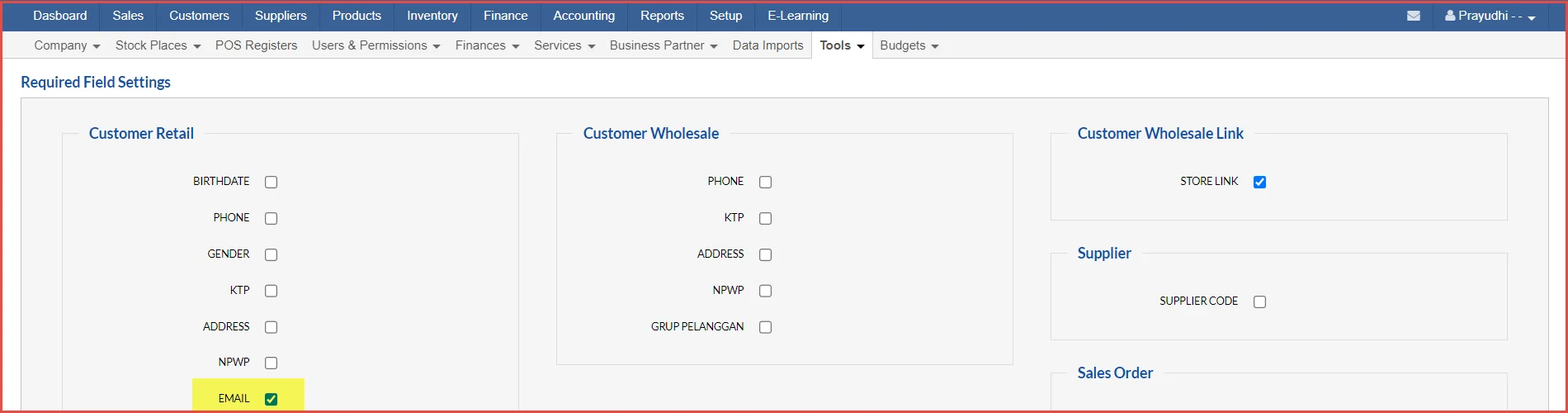
- Menu setup > tools > field setting > customer retail email checklist > save
- Settingan ini akan berlaku juga di sale standar
- Menu setup > tools > field setting > customer retail email checklist > save
Notes
- Barang hanya bisa di delivery dari warehouse tersebut
- Jika testing mengunakan account staging dan sandbox, email receipt tidak akan dikirim ke alamat email terdaftar melainkan akan dikirim ke alamat email support turboly
Perbedaan Type Delivery Store & Warehouse
- Pengunaan Stock
- Store : Mengunakan stock yang ada di store
- Warehouse : Mengunakan stock yang ada di warehouse
- Halaman New Sale
- Store : Menampilkan pilihan fulfillment type
- Warehouse : Tidak ada tampilan fulfilment type
- Status
- Store : Draft > Order Picking > Ready For Delivery > In Transit > Completed
- Warehouse : Draft > Completed
- Email Receipt
- Store : Informasi email pada status ready for delivery, in transit & completed
- Warehouse : Tidak ada informasi by email ke customer
- Reversed Stock
- Store : Status order picking me-reserved stock
- Warehouse : Tidak ada reserved stock
Contoh Sale Ecommerce Type Delivery Warehouse
Langkah Ke-1
- Pilih menu sales
- Lalu sales ecommerce

Langkah Ke-2
- Tab menunjukan proses sale yang akan digunakan adalah sales ecommerce
- Klik tombol new ecommerce sale

Langkah Ke-3
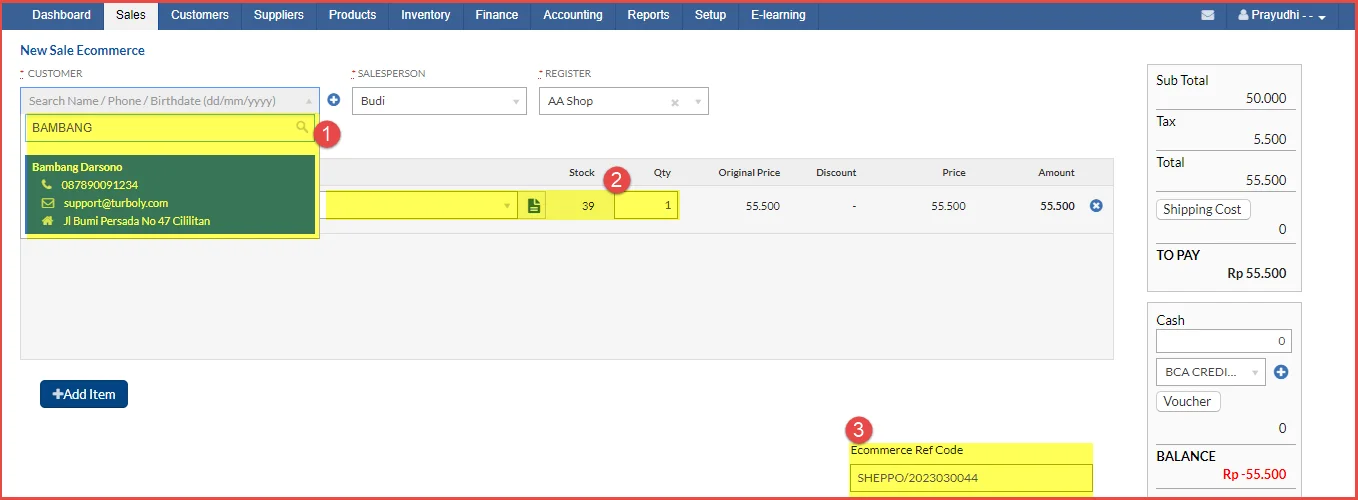
- Customer yang terdaftar harus terdaftar alamat emailnya
- Karena mengunakan stock warehouse maka tidak akan ada pemberitahuan status barang terkirim yang dikirim ke email customer retail
- Masukan barang dan qty nya
- Ecommerce ref code bisa digunakan sebagai catatan tambahan untuk penginputan kode transaksi di luar sistem turboly (ref code e-commerce)
Langkah Ke-4
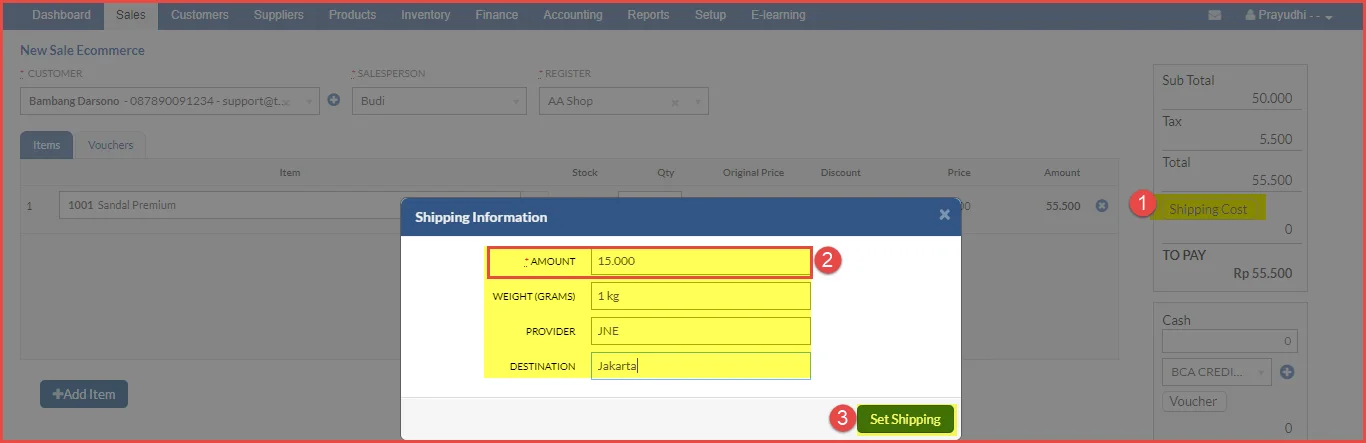
- Jika dalam transaksi ecommerce ada biaya pengiriman bisa mengunakan fitur shipping cost, (klik tombol shipping cost)
- Akan muncul pop up, lalu pilih amount untuk biaya shipping dan data data lain untuk kelengkapan informasi pengiriman
- Jika sudah klik set shipping
Langkah Ke-5
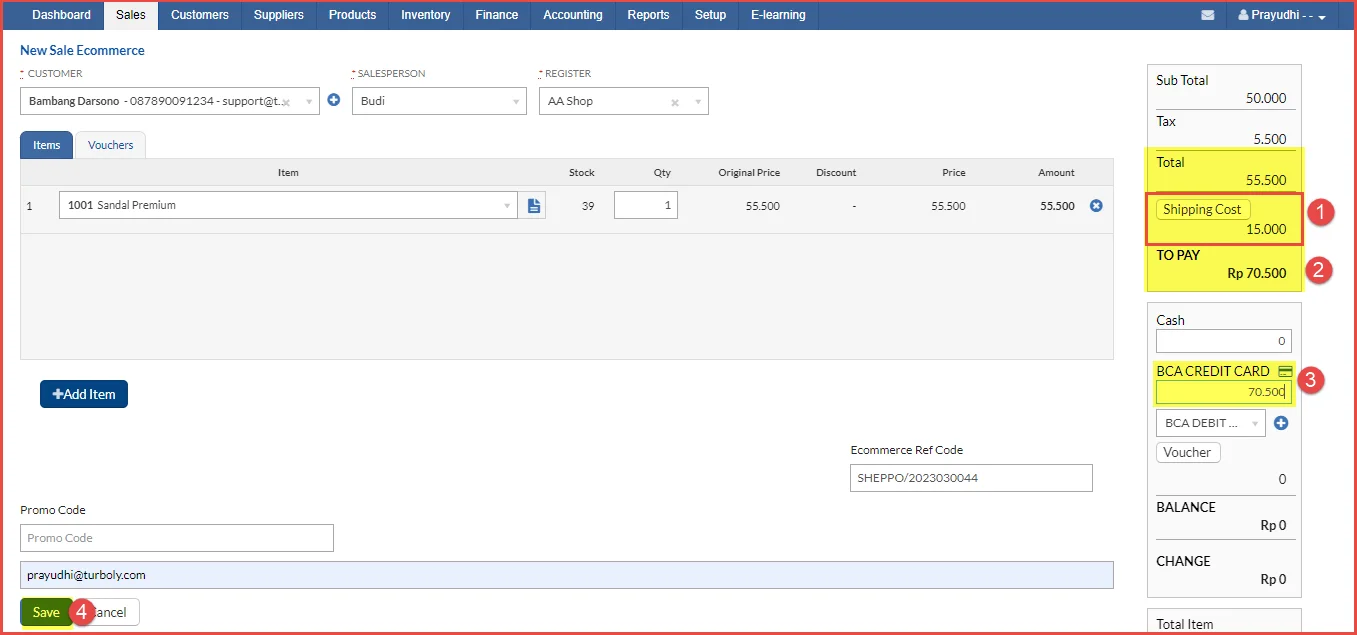
- Shipping cost tercatat sesuai amount yang di input
- Otomatis to pay akan bertambah
- Pilih payment type dan input amountnya
- Jika sudah klik save
Langkah Ke-6
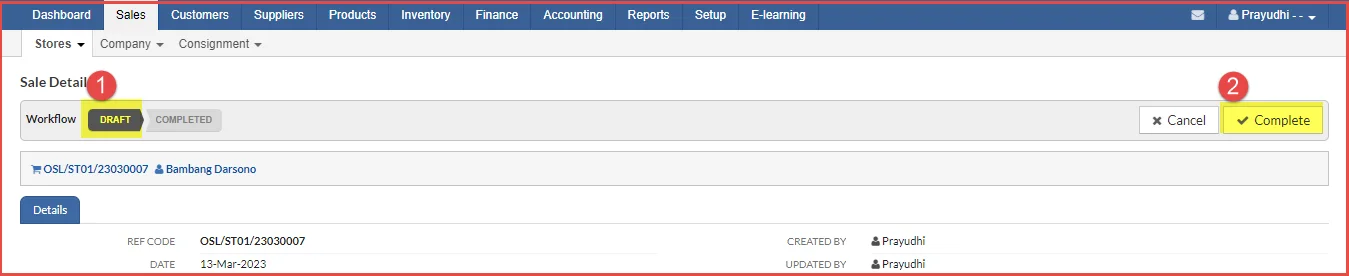
- Ketika status draft bisa edit dan cancel
- Jika ingin melanjutkan klik tombol completed
Langkah Ke-7
- Status completed
- Stock warehouse sudah terpotong
- Tidak ada informasi terkait status barang terkirim ke email customer